Solomonic filters: how to
Solomonic's filters help you quickly refine and explore results across the platform. From searching for specific filters and values to applying Boolean logic and pinning Court filters, this guide covers everything you need to get the most out of filtering.
On this page, you'll find:
Within an individual filter
Across multiple filters
Current limitations
View all filters
Using the search bar
Applying filters
Unsaved filter selections
Managing your filters
Understanding Boolean Filters
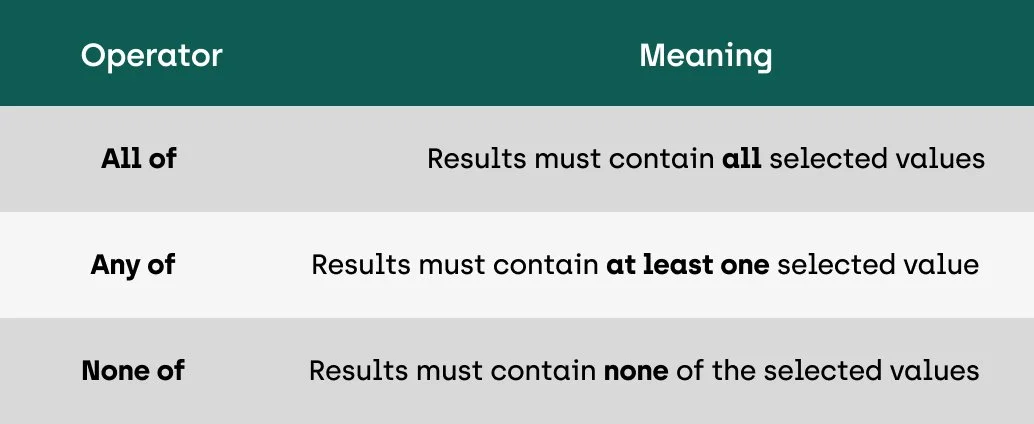
Boolean filters use three operators:
Within an individual filter
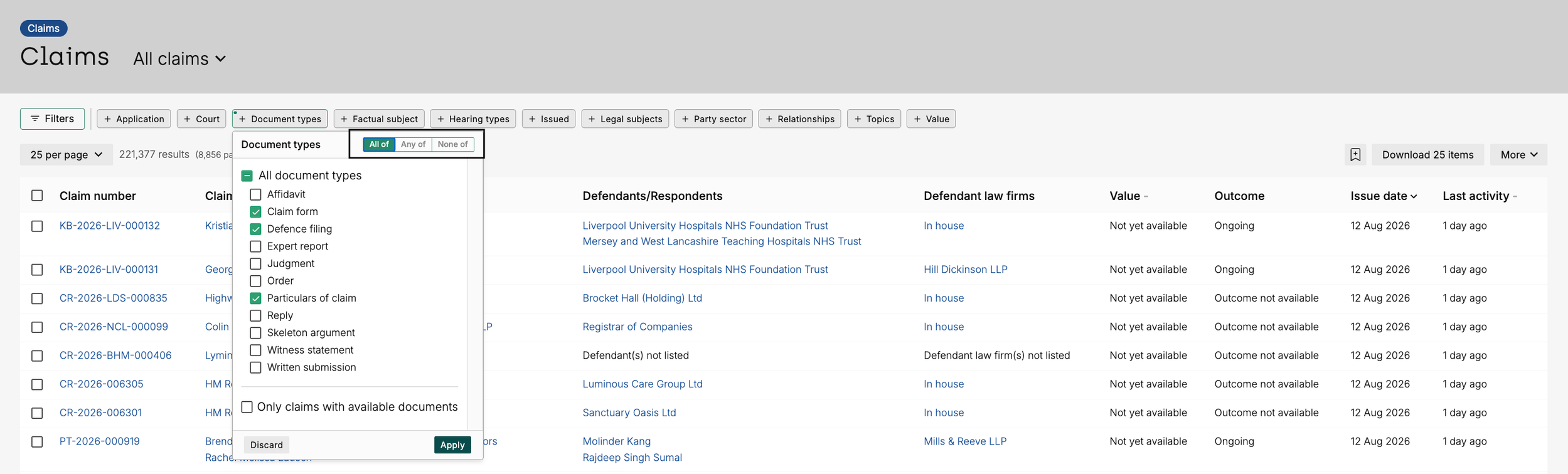
Within the document type filter, if you select:
All of ‘Claim form’, ‘Particulars of claim’, ‘Defence’
This will return claims that contain a claim form AND a particulars of claim AND a defence - at the very least. Claims may contain additional document types, but they must contain all three selected documents.
Any of 'Claim form’, ‘Particulars of claim’, ‘Defence’
This will return claims that contain a claim form OR a particulars of claim OR a defence. Claims may contain a combination of these documents or more, but the minimum requirement here is that at least one of these documents is present.
None of ‘Claim form’, ‘Particulars of claim’, ‘Defence’
This will return claims that contain NONE of these document types.
Across multiple filters
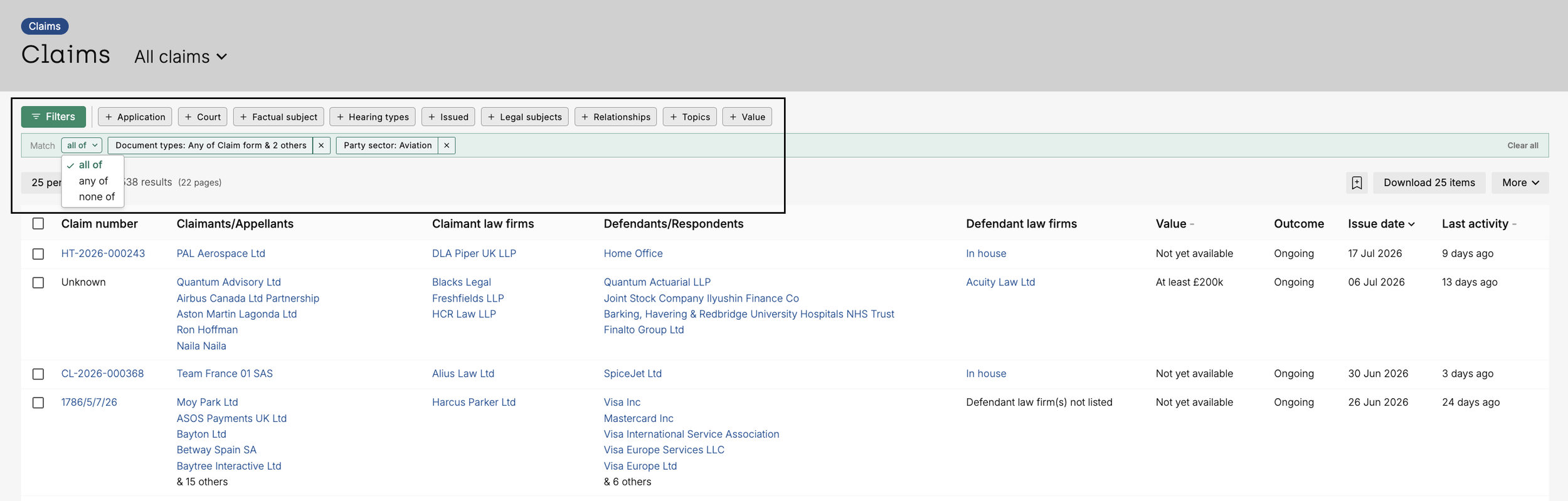
If you select multiple filters, you can apply Boolean operators at the top level to control how those filters interact with each other, giving you greater flexibility when refining your search.
For example, if you apply:
Document Types: Claim Form OR Particulars of Claim OR Defence
Party Sector: Aviation
Then:
All of returns claims that contain at least one of the selected document types (Claim Form, Particulars of Claim, or Defence) AND have a party in the Aviation sector.
Any of returns claims that either contain at least one of the selected document types (Claim Form, Particulars of Claim, or Defence) OR have a party in the Aviation sector.
None of returns claims that match neither filter, excluding claims with the selected document types and excluding claims with parties in the Aviation sector.
Current limitations
The current version of boolean filters does not support:
Multiple operators within a single filter
For example, within the Topics filter, you cannot currently search for All of Fraud whilst also applying None of Tax Fraud within the same filter.
'All of' for all filter types
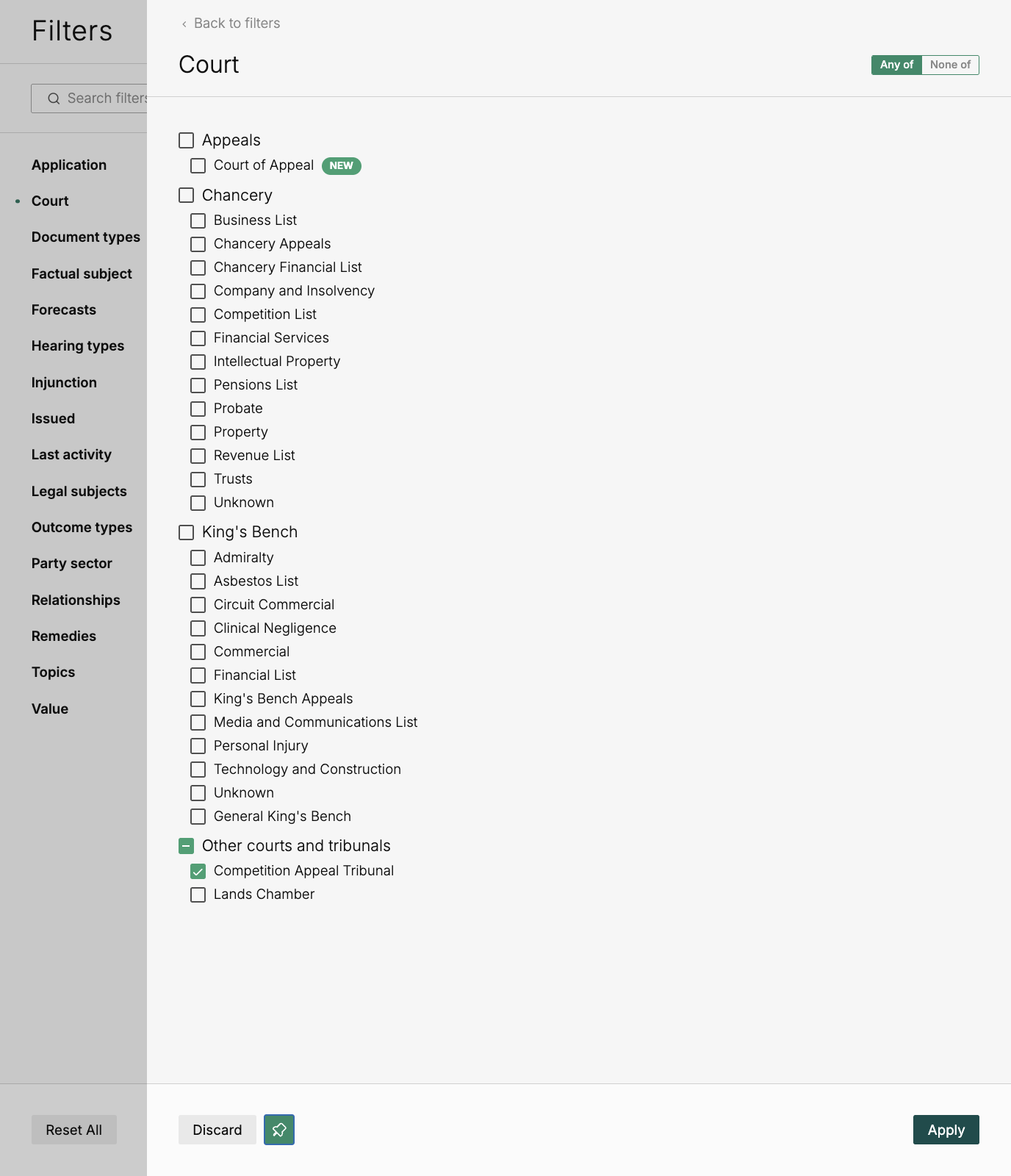
Some filters only allow values that are mutually exclusive. For example, claims can only be issued in a single court, so it is not possible to select All of multiple courts within the Courts filter. As a result, the All of operator is not available for these filter types.
How to use Solomonic filters
Searching for filters and filter values
Across the top of the page, you'll see a selection of featured filters. These are the filters most commonly used on the page you're viewing, making it quicker to access the criteria users search by most often.
Viewing all filters
To browse the full range of filters available, click Filters on the left-hand side of the page.
This opens the filter panel, where you can:
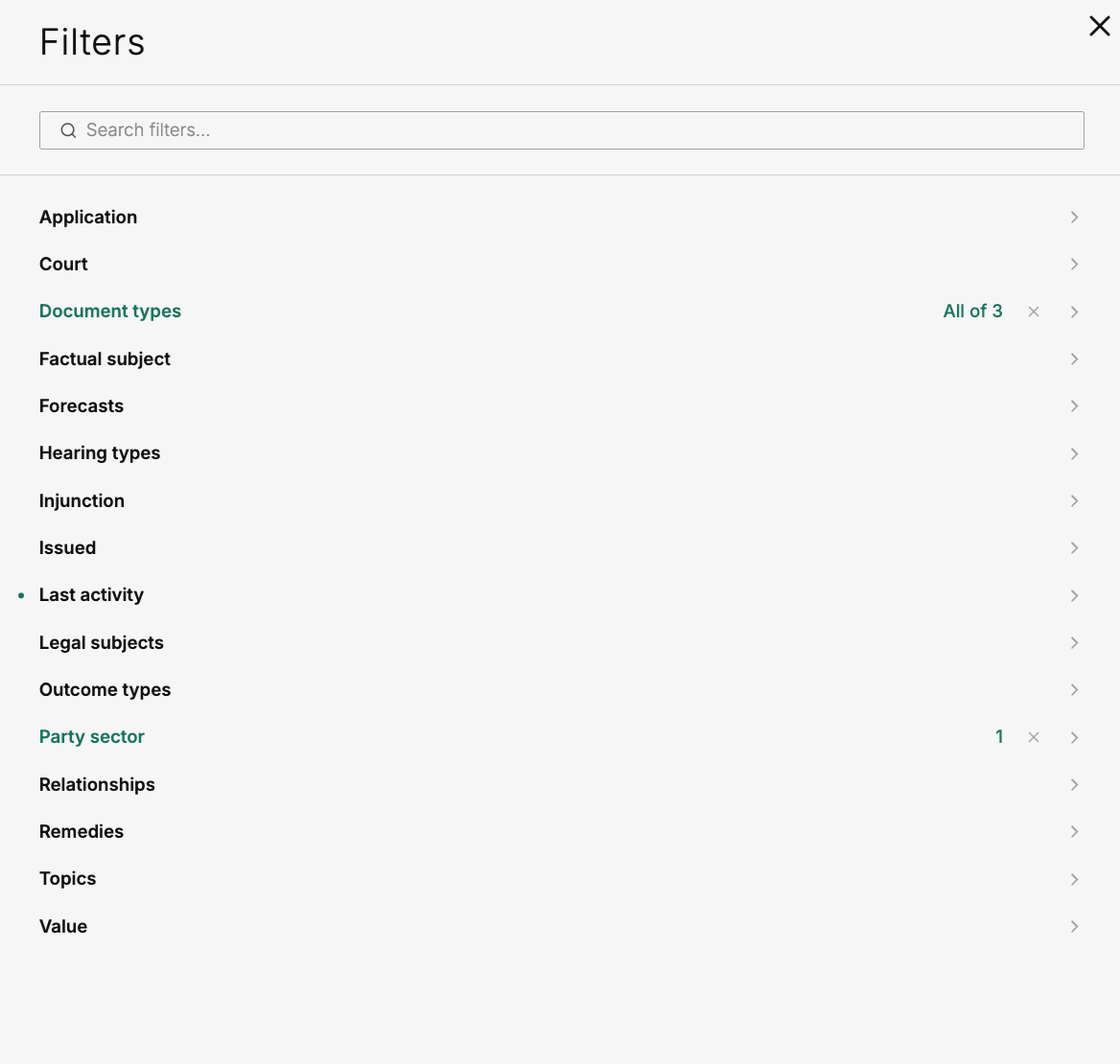
Browse all available filters
Search for filters and filter values
Apply multiple filters at once
Use Boolean operators to refine your search
Using the search bar
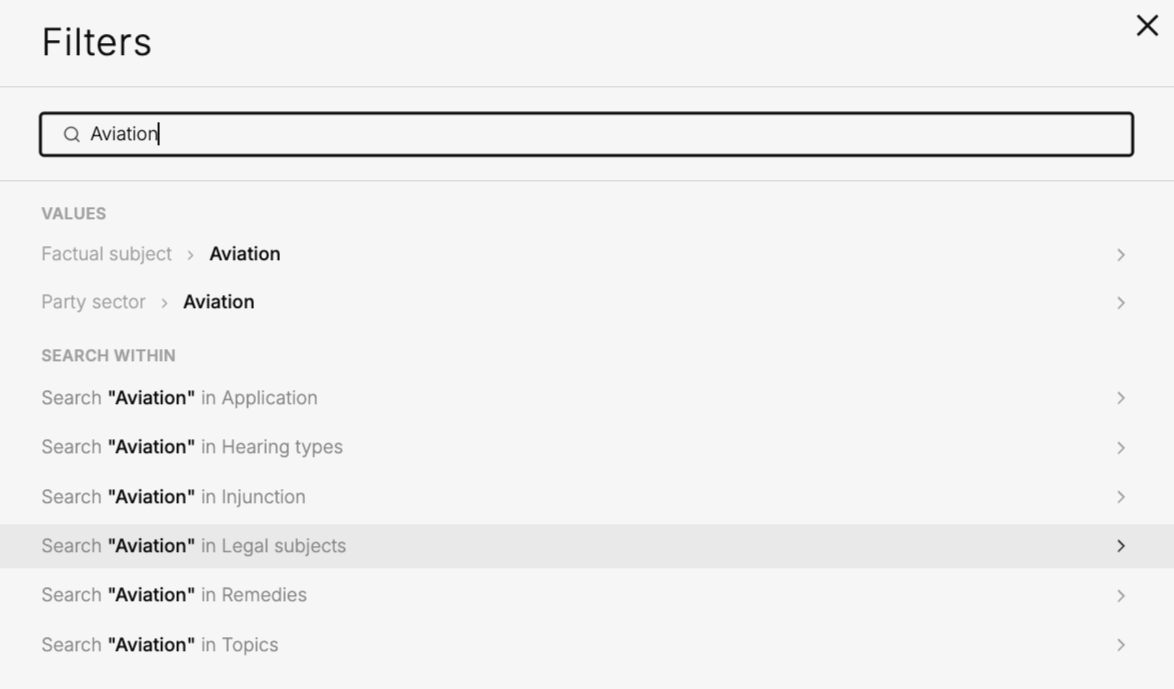
At the top of the filter panel, you'll find a search bar which allows you to immediately find what you’re looking for.
The search bar can:
Match filter types (for example, Document Types or Court)
Match available filter values (for example, Fraud or Aviation)
Suggest other filters where your search term appears as a filter value (for example, search for the term ‘Aviation’ within Legal subjects)
Selecting a result will either take you directly to the relevant filter with its pre-applied selection, or display further options where that value can be found.
Applying Filters
Open a filter and select the what you'd like to include in your search. You can apply as many filters as needed and use Boolean operators to broaden or narrow your results.
When a filter is applied:
A count will appear beside the filter, showing how many values are currently selected.
Your search will only come into affect once Apply is clicked.
Unsaved Filter Selections
If you select filter values but do not click Apply, a green indicator will appear next to the filter name.
This indicates that values have been selected but are not yet affecting your search results.
Your selections will be saved, but they will not be included in the search until you click the green Apply button within the filter.

Managing your filters
Once you've finished selecting filters and click Done, your active filters will appear in the Active Filters Bar at the top of the page.
From here, you can:
Review your applied filters at a glance
Modify existing filters by clicking on them
Remove individual filters using the × icon next to the relevant filter
Adjust the Boolean operator used between active filters
Reopen the All Filters panel to add additional filters and edit existing ones
To remove all active filters, click Clear All on the right-hand side of the Active Filters Bar.
Pinned filters
Focus your analysis on specific courts by using Pinned Filters.
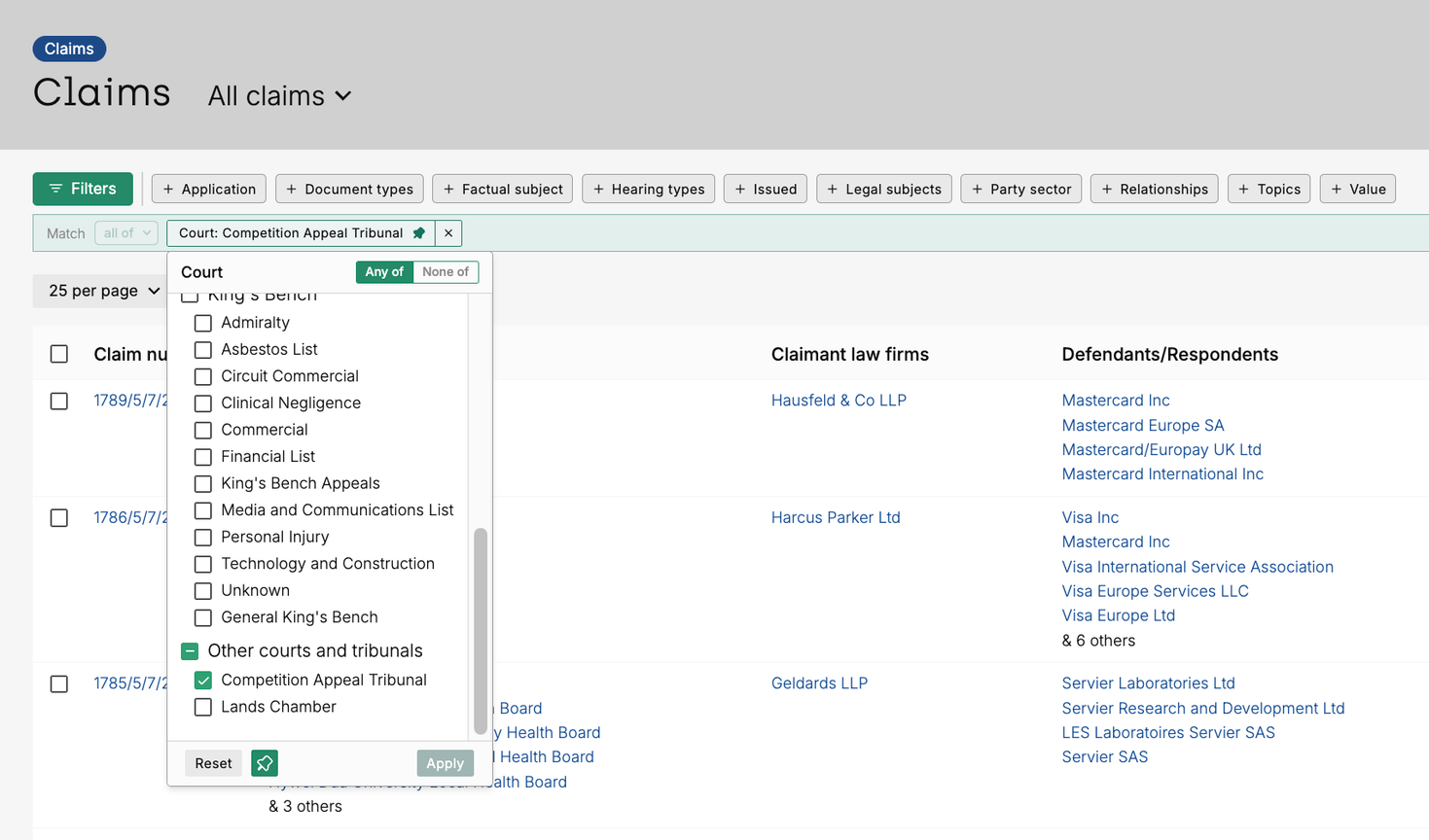
Within the Court filter, you'll find a pin icon at the bottom of the filter panel, next to the Discard button. After selecting your court(s), click Apply Selection to pin the filter.
Once pinned, the Court filter remains active as you navigate across the platform, including between the Claims and Judgments sections. This ensures that the data you view is consistently filtered to your selected court(s), providing a focused and uninterrupted experience.
To remove the pinned filter and return to viewing data from all courts, simply click Reset or the × icon in your active filter bar.