Feature spotlight: Document requests
Welcome to our Feature spotlight ! This is a feature-focused highlight where we take a closer look at features we’ve been developing and refining over time. Each feature we spotlight has grown through iterative development and they’ve quietly grown into powerhouses. We will continue to enhance and expand these features based on your feedback.
Read on for more details on our spotlight feature. If you would like to gain a deeper understanding of these updates, join us at one of our upcoming live training sessions (sign up here), or email us at info@solomonic.co.uk.
Request documents through Solomonic
September 2025
Request Court documents anonymously through Solomonic at the click of a button.
There are 2 key benefits from requesting documents from Solomonic. Firstly, we request documents for you under our name so there is complete anonymity. Typically, when requesting documents from the courts, you must register and submit your email. With us, we do all the legwork for you and there it all remains confidential. Secondly, there is a community benefit. Whenever a user requests a document, it becomes available for all our other users to view. This means all users have access to a huge pool of documents that only continues to grow rapidly.
Documents you have access to:
CPR Rules stipulate that court documents only become available to third parties after the claim has been issued, served and acknowledged. Court documents that are publicly available for request are:
Claim form
Particulars of claim
Order
Defences
Filings
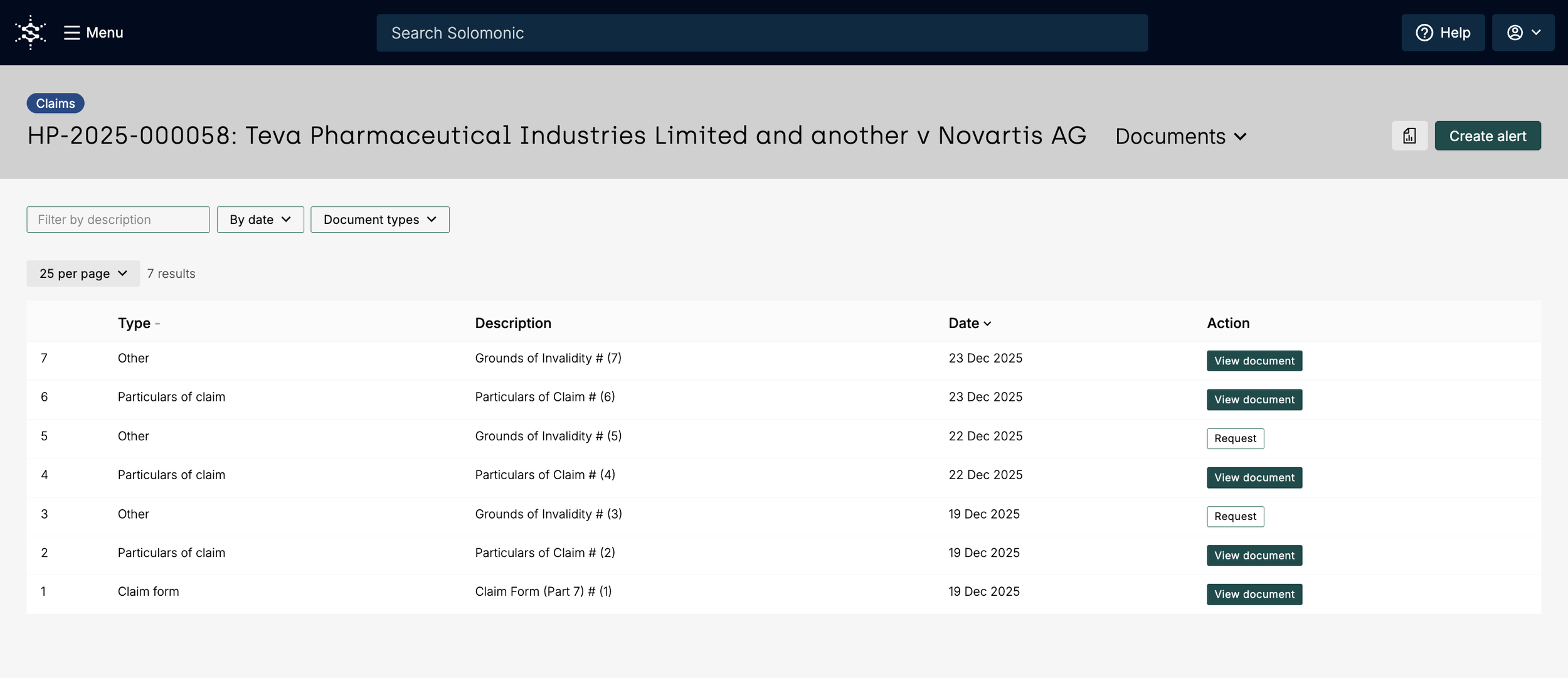
Some of these documents may be immediately accessible for you to download from our platform, and some others will be available to request. When you filter for ‘Document Type’, note that the filter is representative of documents that are available to both request and download, that is, claims that have filings made available by the court, rather than the filings that we have readily available for download.
Managing your document requests at a firm level
Should you have any questions about this release, please do email us at info@solomonic.co.uk.
We have a number of options that we offer to our clients to manage document requests within their firm. Many of our clients use matter codes to track document requests and assign a Document Request Approver to oversee this.
Document Request Approver Process:
You can nominate a Document Request Approver, or multiple - an individual/s within your organisation who can approve or deny document requests made by your users on the platform. This feature facilitates greater control and oversight of document requests.
If you would like to nominate a Document Request Approver for your organisation, please email info@solomonic.co.uk.
Matter code preference:
When a user requests documents, we can also make it so they must enter a matter code before submitting their requests. We have three matter code options:
Fixed format matter codes
This requires users in your organisation to submit each document request alongside a fixed format matter code - defined by you. Users will not be able to submit a request if their entered matter code does not match the submitted structure, or if they attempt to submit without a matter code. You can submit more than one matter code format - this just means users must enter matter codes that fit one of the formats provided by your organisation.
Compulsory free text matter codes
Alternatively, if you’d like the matter codes to be free text, but still compulsory to submit a document request, we can configure the system to prevent users from submitting requests unless there is an entry in the matter code field.
Optional matter codes (default)
This is the current default. Matter codes are optional - users can submit requests with or without matter codes.
If you’d like to change your organisation settings from the default, please email us at info@solomonic.co.uk with your requirements.
Where documents have been made available for request, you will see either a ‘Request’ or ‘Download’ button next to each document. If a document is readily available for download, clicking on ‘Download’ will automatically save the document to your device as a pdf. No one will be able to see that you’ve downloaded the document.
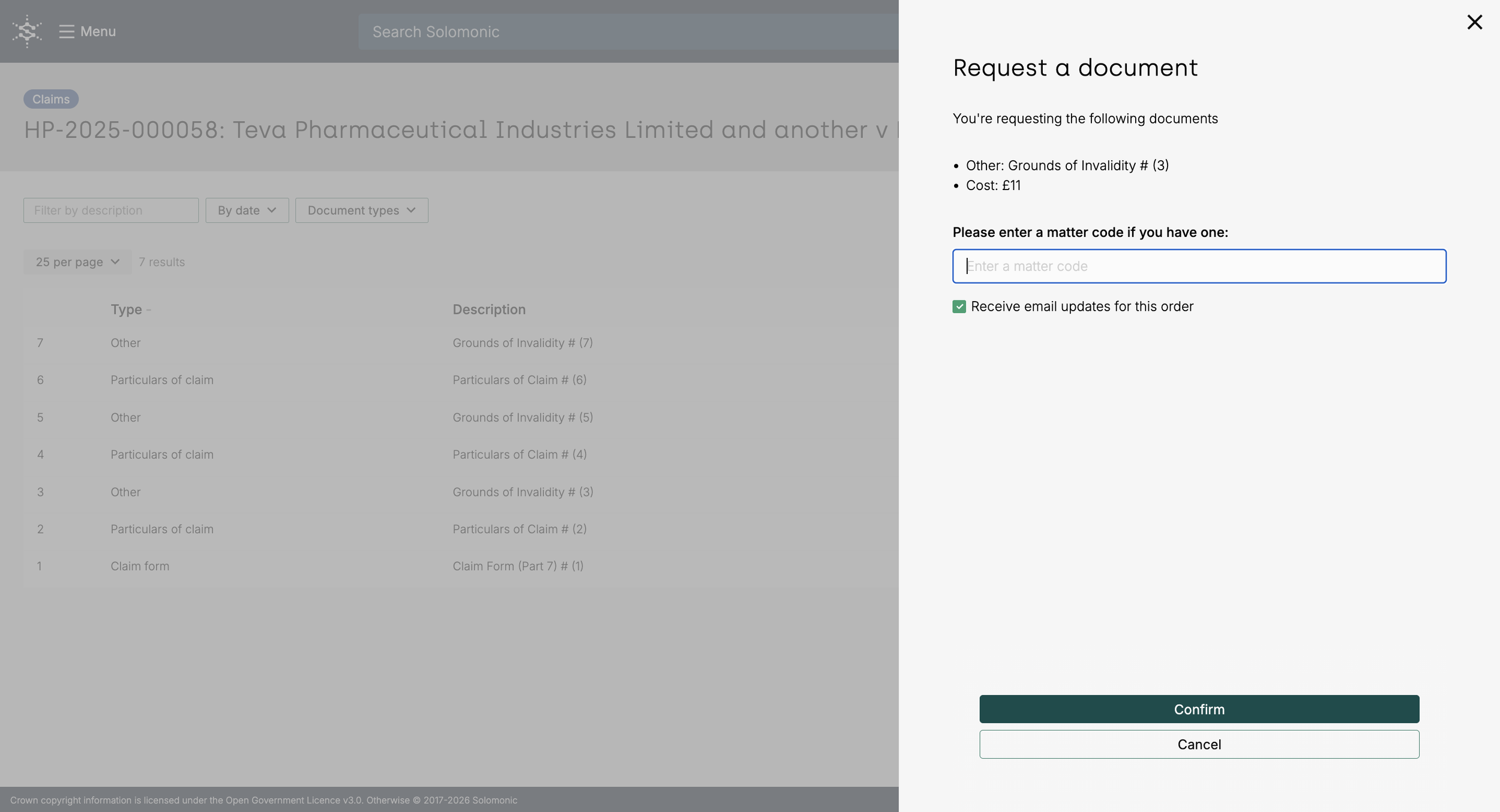
Click on ‘Request’ to request a document from the platform. A panel will appear, confirming the price of your document and if you’d like to enter a matter code. We only pass on the Court fee - we do not charge any marginal cost on top of the Court processing fee. If your organisation has made matter codes compulsory, you must enter your matter code to complete your request. For more information on matter codes, see below.
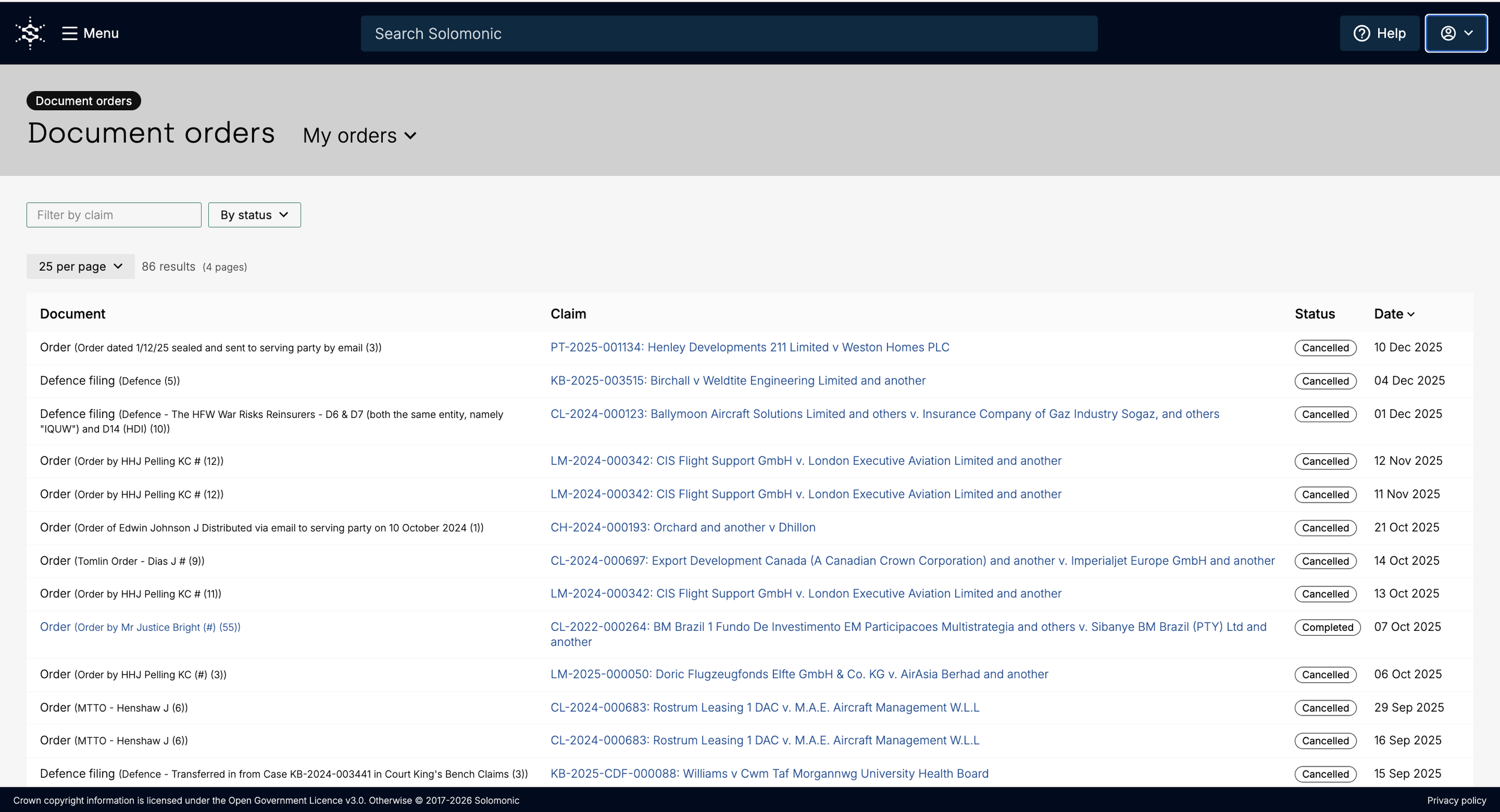
To view and manage all your orders, go to ‘My documents’ from your profile dropdown menu. You will see a list of all your document orders, their statuses and the date on which you requested them. Each document name is hyperlinked so that you can easily access each file.